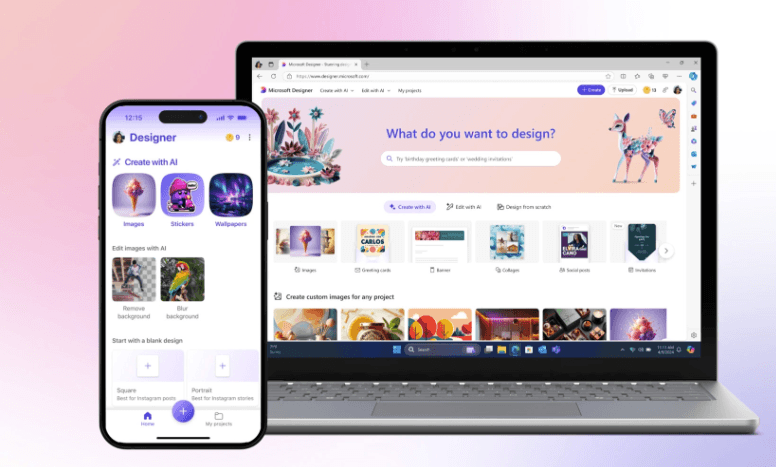
YouTube has become one of the most competitive spaces on the internet, and your channel art is often the first impression a potential subscriber sees. A poorly designed banner can send visitors clicking away before they ever watch a single video. Fortunately, generative AI has completely changed the game, making it possible to create stunning, professional-quality YouTube banners in minutes rather than hours, without requiring any design experience. Whether you’re working from a laptop at your desk or scrolling on your phone between shoots, there are now powerful AI-driven platforms that can help you build a banner that actually represents your brand.
This guide breaks down how generative AI banner tools work, what to look for when choosing one, and the specific features that make certain platforms stand out for creators who need speed, quality, and flexibility across any device.
Why Your YouTube Channel Banner Matters More Than You Think
Before diving into the tools themselves, it helps to understand why the banner is such a critical piece of your channel’s identity. The YouTube channel banner, sometimes called channel art, stretches across the top of your channel page on desktop screens and adapts to smaller sizes on mobile and TV displays. That means your design needs to be smart about where it places key text and images, since the cropping changes dramatically depending on the device.
A great banner communicates your niche instantly. If someone lands on your channel and cannot tell within a few seconds what your content is about, they are far less likely to subscribe. Generative AI tools help you move past the blank canvas problem by generating backgrounds, layouts, and visual elements based on your input, so you spend less time staring at a white screen and more time creating content your audience actually wants to watch.
Beyond branding, your banner also contributes to your channel’s perceived professionalism. Even creators who produce exceptional video content sometimes lose subscribers because their channel page looks unfinished or outdated. A polished, on-brand banner signals that you take your channel seriously, and viewers pick up on that.
What Generative AI Actually Does in Banner Creation Tools
Generative AI in design tools is different from a simple template selector. Rather than choosing from a fixed library of pre-made layouts, you can describe what you want, and the AI generates original visual elements based on your prompt. This might include AI-generated backgrounds, color palettes pulled from your existing brand colors, auto-suggested font pairings, or even entire layout compositions that adapt to your channel’s subject matter.
Some platforms use text-to-image generation, allowing you to type something like “futuristic gaming channel with neon purple and dark tones” and receive a usable background in seconds. Others use AI to intelligently resize and reposition elements for the YouTube safe zone, which is the central portion of the banner that appears consistently across all screen sizes. Either way, the output is faster, more customized, and more flexible than working from scratch.
The most capable platforms combine generative AI with smart editing tools so you can refine the output to match your vision exactly. This hybrid approach, where AI handles the heavy lifting and you retain creative control, is what separates truly useful banner makers from novelty generators.
Key Features to Look for in an AI YouTube Banner Platform
Not all AI-powered design platforms are created equal. When evaluating your options, there are several features worth prioritizing to make sure you get the most out of any tool you choose.
Cross-device compatibility. The best platforms work seamlessly on both desktop and mobile browsers, and some have dedicated apps that make the experience even smoother on smaller screens. If you often work on the go, mobile-first design or a responsive web interface should be near the top of your checklist.
Generative AI capabilities. Look for platforms that offer more than templates. True generative AI features include text-to-image background creation, AI-assisted layout suggestions, smart text placement, and auto-color theming based on your inputs or uploaded assets.
YouTube-specific sizing. The correct dimensions for a YouTube channel banner are 2560 x 1440 pixels, with a safe zone of 1546 x 423 pixels for key content. The best tools either auto-apply these dimensions or include guidance to help you design within the safe area without guesswork.
Asset libraries and brand kits. If you want your banner to match your video thumbnails, social posts, and other channel materials, look for platforms that allow you to store brand colors, logos, and fonts for consistent use across all your designs.
Export quality. Blurry or compressed banners look unprofessional. Make sure the platform exports your finished design at full resolution without forcing you to upgrade just to download a usable file.
Top Tips for Using AI Banner Makers Effectively
Start With a Clear Visual Direction
Before you open any design tool, spend a few minutes thinking about what your channel represents and how you want it to look. Write down three adjectives that describe your channel’s vibe, whether that is energetic, calm, educational, humorous, or anything else. This short exercise makes your AI prompts much more specific and productive. When you type a well-crafted prompt into a generative AI tool, the results are sharper and require far less manual adjustment.
Think about creators in your niche whose visual branding you admire. You don’t need to copy anyone, but understanding what works aesthetically for your genre helps you define what elements belong in your own banner. A travel channel might want sweeping landscapes and bold typography. A cooking channel might benefit from warm tones and food-forward imagery. The AI works best when you give it direction.
Use Adobe Express for a Fast, Professional Result
One of the most powerful options for AI-assisted YouTube banner creation is Adobe Express, which combines generative AI tools with professional-grade design assets, brand kits, and YouTube-specific templates. You can access the YouTube banner maker directly from your browser on desktop or mobile without downloading any software. Adobe Express offers text-to-image generation powered by Adobe Firefly, so you can generate custom backgrounds from a simple text description and then layer your channel name, tagline, and logo directly on top.
What makes Adobe Express particularly strong for YouTube creators is the combination of creative flexibility and ease of use. You don’t need design experience to get a polished result. The platform guides you through the safe zone layout so your most important text stays visible regardless of whether your banner is viewed on a phone, desktop, or smart TV. Because it’s part of the Adobe ecosystem, you can also access thousands of premium fonts, licensed stock photos, and graphic elements that would otherwise require separate subscriptions.
Leverage AI Background Generation Generously
Many creators default to solid color backgrounds or generic stock photos because they’re easy to find and apply. But AI background generation gives you access to visuals that are completely unique to your channel, which helps with brand recognition over time. Experiment with different prompt styles when generating backgrounds. Try abstract and geometric prompts if you want something clean and modern, or try detailed environmental prompts if you want something immersive and story-driven.
Don’t settle for the first result. Most generative AI tools allow you to regenerate variations of the same prompt or tweak specific elements. Give yourself at least five to ten generations before committing to a direction. This is where AI tools genuinely speed up the creative process, since generating ten variations takes seconds rather than the hours it would take to create them manually.
Prioritize the Safe Zone Above Everything Else
This is one of the most common mistakes new creators make: they design a beautiful banner and then upload it to YouTube only to find that the most important elements are cropped out on mobile. The YouTube safe zone is the central 1546 x 423 pixel area, and it is the only part of your banner guaranteed to be visible across all devices. Keep your channel name, logo, and any tagline inside this zone without exception.
The good news is that most modern AI banner tools include safe zone guides as an overlay while you design. Turn these on from the start and resist the temptation to push important elements outside the boundary, no matter how good it looks in the full desktop preview. Design for the safe zone first, then fill in the outer areas with your background and decorative elements.
Match Your Banner to Your Thumbnail Style
Your YouTube channel page is most compelling when everything looks cohesive. If your thumbnails use bold red and white text with high-contrast portraits, your banner should reflect those same colors and energy. Many creators treat the banner as a one-time task separate from the rest of their visual identity, but the most recognized channels on the platform treat banner design as part of a unified system.
When using an AI banner tool, import your brand colors into the platform’s color picker or brand kit feature if one is available. This ensures the AI-generated elements blend naturally with everything else associated with your channel rather than clashing with your existing visual language.
Refresh Your Banner Seasonally or When Your Content Evolves
A YouTube banner is not a set-it-and-forget-it asset. As your channel grows and your content direction matures, your banner should evolve with it. Many creators update their banners every few months to reflect new series, milestones, or seasonal themes. Because AI tools make the design process so fast, there’s no longer a reason to keep an outdated banner up simply because redesigning feels like too much work.
Keeping your banner fresh also gives returning visitors a signal that your channel is active and growing, which subtly reinforces the decision to stay subscribed. Even minor updates, like adding a new content pillar or updating your posting schedule text, keep your channel page feeling current.
Test How Your Banner Looks on Multiple Devices Before Publishing
Before uploading your finished banner to YouTube, preview it on at least two or three different screen types. Open your YouTube channel on your phone, on a tablet if you have one, and on a desktop browser. What looks perfect on one screen may have text cut off or look oddly cropped on another. Many design platforms offer a device preview feature that simulates these different views before you export.
YouTube’s channel customization page also offers a preview function that shows how your banner will appear on different screen sizes. Use it every time you upload a new banner, not just the first time. It takes less than a minute and can save you from leaving an embarrassing layout live on your channel page.
See also: Tech Growth Techidemics .Com Blueprint
Use Text Sparingly and Intentionally
One of the most common design mistakes in YouTube banners is overcrowding the text. The banner is not the place for a paragraph about what your channel does. Stick to your channel name and one short supporting line, such as a tagline or your upload schedule. That’s it. The AI tools available today are excellent at generating compelling visuals, but they work best when the text layer is clean and minimal.
Choose fonts that are readable at smaller sizes, since many viewers will see your banner reduced significantly on mobile. Bold, sans-serif fonts generally perform best for readability across all devices. If you’re unsure, most AI platforms have font pairing suggestions built in that take the guesswork out of typography decisions.
Incorporate Your Channel’s Color Psychology
Colors communicate emotion before your audience reads a single word. If you run a health and wellness channel, cool blues and greens signal calm and trust. If you create tech review content, darker tones with accent colors like electric blue or silver tend to signal modernity and reliability. Gaming channels often lean into high-contrast, saturated palettes. When you type prompts into an AI background generator, include your color direction explicitly rather than leaving it to chance.
Some platforms allow you to upload an image or logo and automatically extract a color palette from it. This is an extremely efficient way to ensure AI-generated elements complement your existing visual assets without manual color matching.
Keep Your Logo and Channel Name Visually Distinct From the Background
No matter how stunning your AI-generated background is, it should never compete with your channel name for attention. The background’s job is to support and frame your brand identity, not overwhelm it. When generating backgrounds with AI, lean toward options with areas of lower detail or softer contrast where your text and logo will live.
If your logo or channel name blends into the background, try adding a subtle drop shadow, a semi-transparent overlay behind the text, or a simple block of your brand color as a container. Most AI banner platforms make these adjustments simple with layer controls or one-click style options. The goal is immediate legibility at a glance, even for a first-time visitor.
Frequently Asked Questions
What dimensions should I use for an AI-generated YouTube banner?
The recommended upload size for a YouTube channel banner is 2560 x 1440 pixels, which YouTube refers to as the “channel art” dimensions. However, not all of that space is visible on every device. The safe zone, where your essential content like your channel name and tagline should live, is 1546 x 423 pixels centered within the full canvas. When using an AI banner maker, always start with the full 2560 x 1440 canvas and keep your critical elements inside the safe zone. Many modern tools have this guide built directly into the design interface, so you don’t need to manually calculate placement. After you create and download your design, YouTube recommends keeping the file size under 6 MB for upload, and either JPG, PNG, GIF, or BMP formats are accepted.
Can I really make a professional YouTube banner on my phone using an AI tool?
Yes, and it’s more practical than most creators expect. Several generative AI design platforms are optimized for mobile browsers and offer apps that bring the full design experience to smaller screens. The key is choosing a platform that has a genuinely responsive interface rather than a desktop experience crammed into a mobile browser window. On mobile, look for tools with touch-friendly controls, tap-to-edit text layers, and drag-and-drop element placement. The generative AI features, including text-to-image background creation and AI layout suggestions, typically work just as well on mobile as they do on desktop since the generation happens server-side. If you travel frequently or do your creative work away from a desk, a mobile-compatible AI banner tool is well worth the time investment to find and set up properly.
How does generative AI differ from using a standard YouTube banner template?
A traditional template gives you a fixed layout that you customize by swapping out text and photos. Generative AI goes further by creating original visual content based on your input rather than pulling from a finite library. When you describe your channel concept to a generative AI tool, the system builds images, color schemes, and design elements that didn’t previously exist in a template catalog. This means your banner is more distinctive and less likely to look like dozens of other channels using the same starting point. That said, generative AI tools often include templates as a starting point for creators who want structure before layering in AI-generated elements. The most effective approach is often to start with a template layout and replace the background with a generative AI image that fits your channel’s specific aesthetic.
Is it safe to use AI-generated images in my YouTube banner commercially?
This is an important question and the answer depends on the specific platform you use. Many generative AI design tools are built with commercial licensing in mind, meaning the images generated within the platform are cleared for use in commercial contexts including monetized YouTube channels. Adobe Firefly, for example, is trained on licensed and public domain content specifically to make its outputs safe for commercial use. Always read the terms of service for any AI image generation tool you use, and pay particular attention to sections covering ownership of outputs and permitted commercial use. If you’re unsure, reaching out to the platform’s support team for clarification is always a reasonable step. For tracking your channel’s growth and performance after your banner is live, a free tool like Google Analytics connected to your YouTube Studio data can help you measure whether your updated channel art correlates with improved subscriber growth or click-through improvements.
How often should I update my YouTube channel banner?
There’s no single correct answer, but a practical guideline is to review your banner any time your channel undergoes a meaningful shift. This includes launching a new series, changing your upload schedule, rebranding your channel name or niche, reaching a subscriber milestone you want to highlight, or simply feeling like your current banner no longer represents the quality level of your content. Many successful creators update their banners two to four times per year, sometimes aligning updates with seasons or major content pushes. Because AI banner tools have made the design process dramatically faster, a refresh that used to take a full afternoon can now be accomplished in under thirty minutes. The low time cost means there’s little reason to leave a stale or outdated banner in place, and keeping your channel page visually current signals to both returning and new viewers that your channel is active and well-maintained.
Final Thoughts
The combination of generative AI and cross-device design platforms has removed the biggest barrier standing between creators and professional channel branding: the time and skill required to design from scratch. Whether you’re a brand-new creator building your first YouTube presence or an established channel looking to refresh your look, AI-powered banner makers give you the creative tools to produce something genuinely compelling in far less time than traditional methods would require.
The most important takeaway is that no single feature matters more than the combination of ease of use, generative quality, and mobile compatibility. When those three elements come together in a single platform, the process of creating a great YouTube banner stops feeling like a chore and starts feeling like a natural extension of your creative work. Use the tips in this guide, give yourself permission to experiment, and remember that your banner is always a work in progress, not a finished monument. The tools are available, the technology is mature, and the only thing left is to open a tab and start creating.